
¶ Casting & TV Control
This page covers the three tools used to put content on the room TVs:
-
Casting page — share a laptop screen to a room
-
Admin page — full control of every TV, with previews (needs a password)
-
Simple page — quick switching for a single TV, no password needed
¶ Overview
Each TV is driven by a small device (a Raspberry Pi, or an Apple TV where set up) that stays on one web address and shows whatever that address is currently pointed at. Nobody touches the TV or its input directly — everything is changed from these web pages instead.
Every room has three things it can show:
| Choice | What it is |
|---|---|
Cast |
Someone’s laptop or phone screen, shared live to that room |
Announcements |
The looping announcement slides, kept up to date from a shared folder |
Livestream |
The church’s live service feed |
When nothing is being cast to a room, that TV shows a simple "how to connect" picture with the room’s name on it, so anyone walking up with a laptop knows what to do.
| If you only need to flip one TV between its own cast, Announcements, or the Livestream, use the Simple page — it is faster and does not need a password. Use the Admin page when you need previews, status, or anything more specific. |
¶ Casting from a laptop
Use this when someone wants to show their own screen — slides, a document, a video, a browser window — on a room’s TV.
¶ Steps
-
On a laptop connected to the Wellspring Office Wi-Fi, go to:
-
Click the button for the room (
MPR,105,Youth,Lobby, orTV Cart). -
The browser will ask what to share — choose a specific screen, window, or, just one tab.
-
The video appears on the room’s TV within a few seconds.
-
When finished, click Stop sharing on the page (or use the browser’s own "Stop sharing" control). The TV automatically returns to the connection picture a few seconds later.
|
Screen sharing only works in a computer web browser (Chrome, Edge, or Firefox) on a laptop or desktop computer. It does not work from a phone or tablet’s browser — mobile browsers don’t support sharing a screen this way. To cast from a phone or tablet, use a free app such as Larix Screencaster (iOS/Android) instead. In the app, add a connection with:
Use the exact room name in the URL ( |
|
The device doing the casting (laptop, phone, or tablet) must be on the church’s own Wi-Fi. The casting page itself will only load over the local network, so it will not connect if not on the 'Wellspring Office Wifi' from off-site or over a VPN. |
¶ Admin page (full control)
Use this when you need to see what’s on each TV, check whether a TV is online, or point a TV at something other than its own cast.
¶ Access
This page requires the admin username and password. Ask a tech team lead if you don’t have it.
¶ What you’ll see
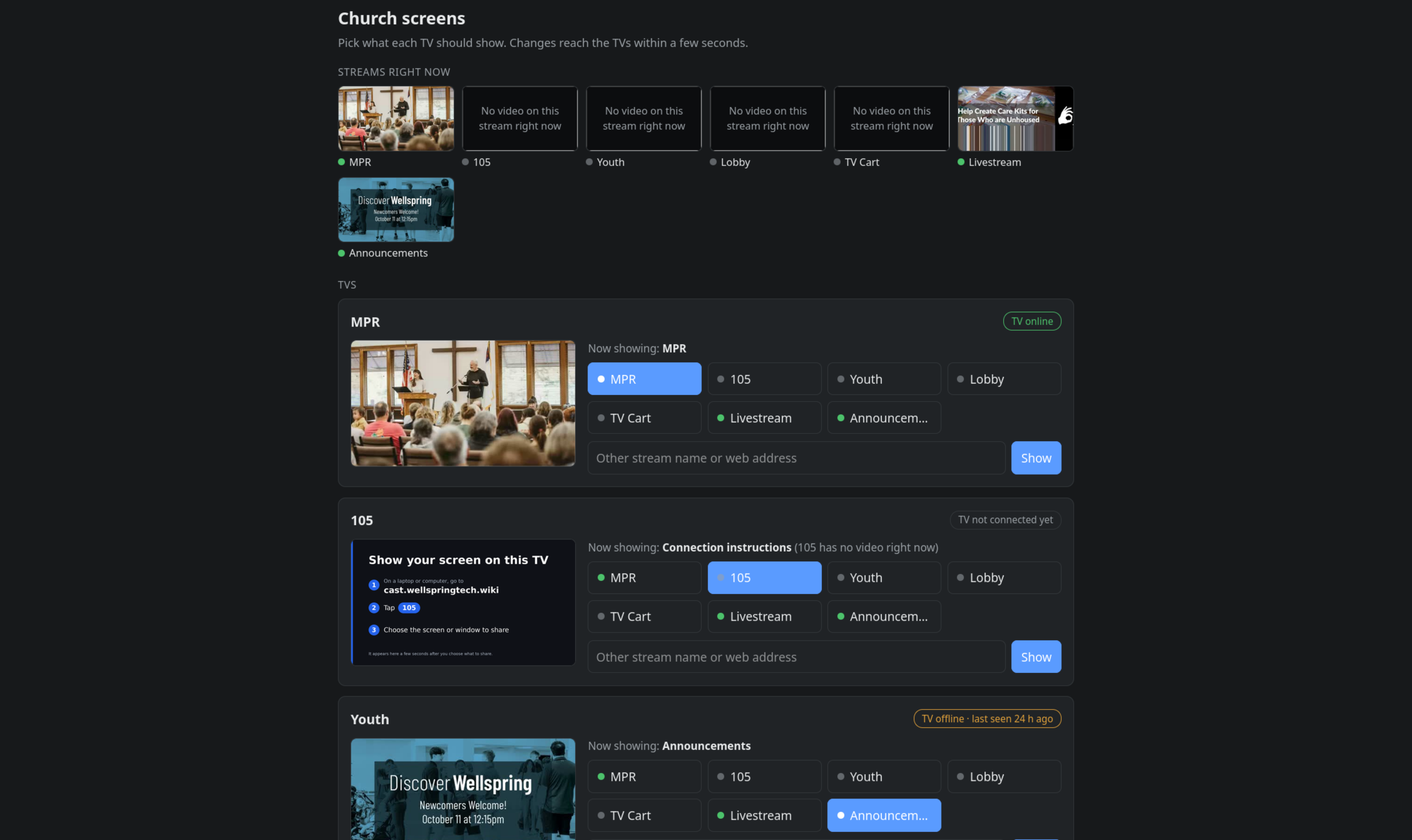
Streams right now — a row of small live pictures, one per stream (each room’s own cast, Livestream, Announcements). A stream with nothing playing says "No video on this stream right now."
TVs — one card per room, each with:
| Element | Meaning |
|---|---|
Preview picture |
What that TV is showing right now |
Status badge |
TV online — the TV has checked in recently and matches what’s selected. TV updating… — you just changed it; clears in a few seconds. TV offline — the TV hasn’t checked in; usually means it lost power or network. TV not connected yet — the server restarted and that TV hasn’t checked in since. |
"Now showing" line |
What’s actually on the TV. If the TV’s own cast has no video, this will say it’s showing the fallback instead, and name which one. |
Choice buttons |
Click any button (the room’s own name, another room, Livestream, Announcements) to send that to the TV immediately. |
"Other stream name or web address" |
Type a stream name or a full web address and click Show to send something not covered by the normal buttons. |
¶ Setting a custom source
Type a stream’s internal name (for example test for a quick test stream)
or a full https:// address into the box under a TV’s card, then click
Show. A web address will only display correctly if that site allows being
shown inside another page — some sites block this.
|
Anything typed into this box is sent to the TV exactly as entered. Only trusted staff should have the admin password, since this field accepts any web address. |
¶ Simple page (quick switching, no password)
Use this for day-to-day switching when someone just needs to flip one TV between its own cast, Announcements, or the Livestream — no previews, no login.
¶ Using it
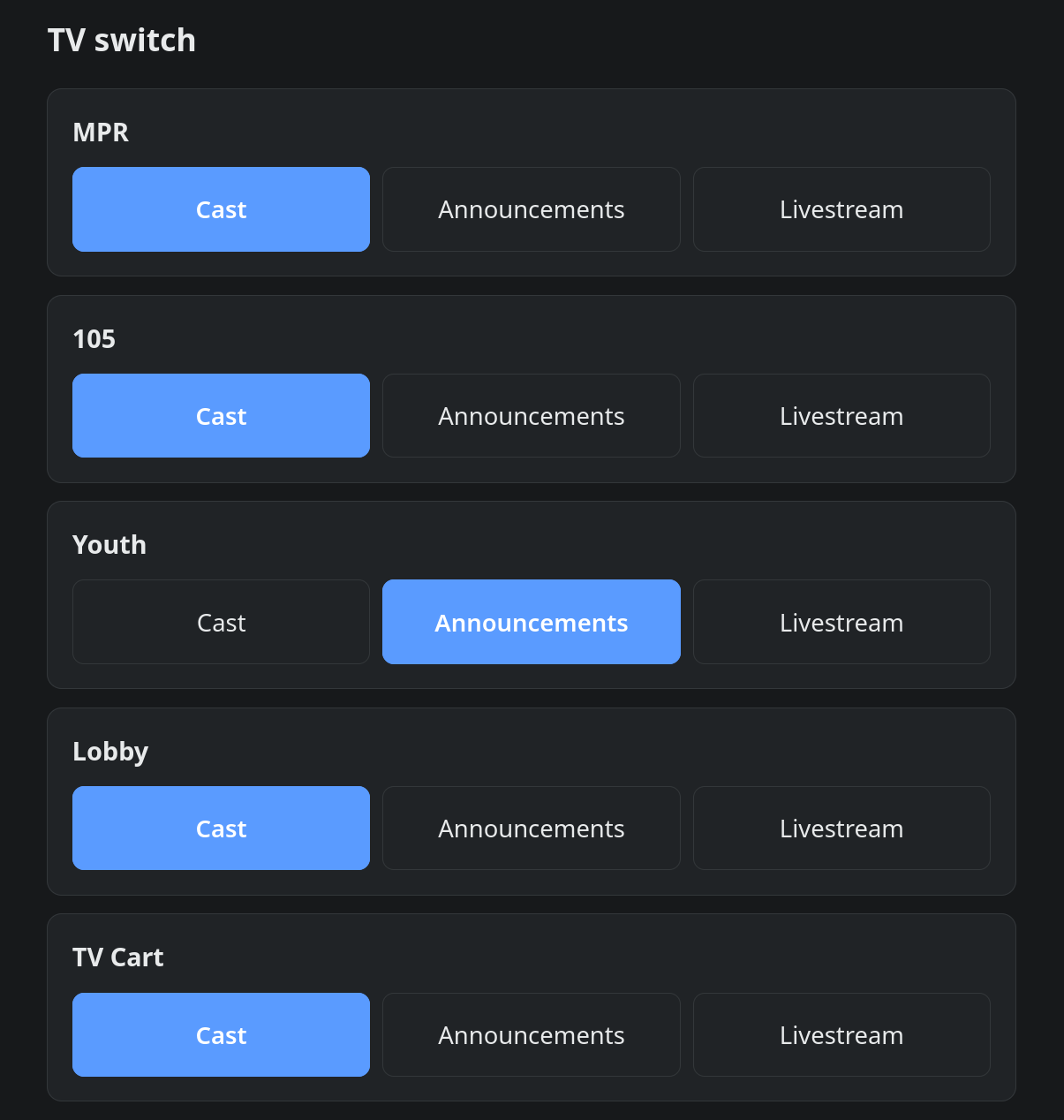
Each TV has a card with three buttons:
| Button | Result |
|---|---|
Cast |
Shows whatever is being cast to that room’s own address (same as the Casting page above) |
Announcements |
Shows the looping announcement slides |
Livestream |
Shows the church’s live service feed |
The active choice is highlighted. Tap a different one to switch; it takes effect within a few seconds.
|
This page intentionally has no password, so it can only ever choose between these three options for a TV — it cannot be used to send a web address or anything else to a screen. |
¶ Quick reference
| Page | Address | Password? |
|---|---|---|
Casting page |
|
No |
Admin page |
|
Yes |
Simple page |
|
No |
¶ Troubleshooting
| Symptom | Likely cause / fix |
|---|---|
Casting page loads but clicking a room does nothing |
The browser blocked screen sharing. Make sure you’re using Chrome, Edge, or Firefox on a laptop, not a phone or tablet. |
TV shows the "how to connect" picture instead of a cast that was just started |
Give it a few seconds — the TV checks for changes every couple of seconds. If it doesn’t update after ~10 seconds, confirm the casting device is on the church Wi-Fi. |
A room’s own cast doesn’t show up as "online" even though someone is streaming to it |
Confirm the app is sending the stream name to exactly match the room (case-sensitive). Some apps that split addresses into separate fields can produce a slightly different path — ask the tech team to check the server logs if this keeps happening. |
Admin page asks for a login I don’t have |
Use the Simple page instead if a basic switch is all you need, or ask a tech team lead for the admin password. |